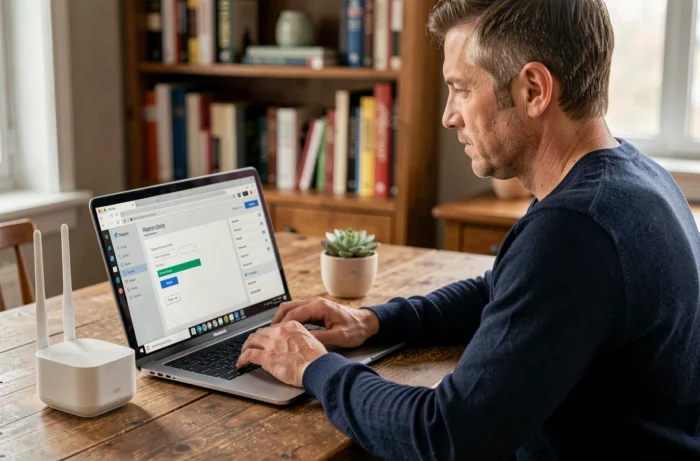
Your internet box contains a settings panel accessible from any browser. Changing the Wi-Fi password, checking connected devices, or adjusting the encryption protocol: everything goes through this administration interface. The problem is that this entry point to your home network can also become a vulnerability if it is not properly secured.
Real Risks of an Insecure Box Interface
Unauthorized access to the administration interface of your box can have consequences far beyond just a slowdown in connection.
An administration password left at its factory value (often “admin”) allows any device connected to the local network to modify your settings. DNS redirection, port opening, firewall deactivation: the consequences go beyond simple bandwidth theft.
Remote administration should never be left enabled by default. If your box’s interface is accessible from the internet (and not just from your local network), its attack surface increases significantly. Changing the port number is not sufficient protection. For remote access, prefer a VPN or the secure mechanism provided by your box’s manufacturer.
The Skills Forum, in its September 2026 publication on exposed VPNs and firewalls, reminds us that these devices have become a major initial access vector. It recommends following the advisories from CERT-FR, manufacturer alerts, and the actively exploited vulnerabilities catalog from CISA to quickly apply patches.
Before adjusting the settings, a practical guide on Hebdo Linux details the steps for secure access according to each operator, which complements the points discussed here well.
Accessing the Interface: IP Address and Credentials by Your Operator
Have you ever noticed that typing “192.168.1.1” in the address bar doesn’t always work? The address depends on your provider, and the confusion between the address bar and search engine remains the primary source of failure.
Addresses by Operator
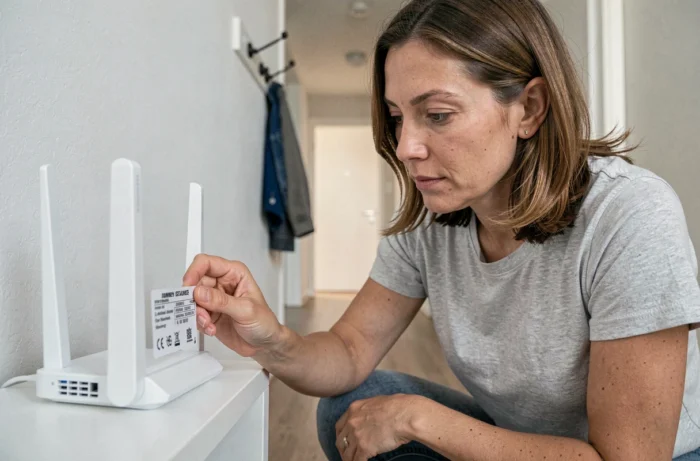
- Orange (Livebox): enter 192.168.1.1 or http://livebox/ in your browser. The default username is “admin” and the password is on the label under the box.
- Free (Freebox): use mafreebox.freebox.fr. The Freebox OS interface opens directly, with a password set during the initial configuration.
- Bouygues Telecom (Bbox): type 192.168.1.254 or bbox.lan. The default username and password are indicated on the box itself.
- SFR: the address is 192.168.1.1. Access requires a username and password, again printed on the equipment label.
If none of these addresses work, look for the default gateway of your connection. On Windows, open the command prompt and type “ipconfig”: the “Default Gateway” line displays the address to use.
Browser and Compatibility
Use an up-to-date browser. Very old versions may display a degraded page that prevents entering credentials. Chrome, Firefox, Safari, or Edge in their recent versions work without issue.
Wi-Fi Encryption: The WPA3 Trap and Transition Mode
Once connected to the interface, the Wi-Fi security section offers several encryption protocols. WPA3 provides the best current level of protection, but enabling it without caution can cut access to some of your devices.
Why is this a problem? Older connected devices (cameras, printers, speakers) often only support WPA2. By switching your box to strict WPA3, these devices simply can no longer connect to the network.
The WPA2/WPA3 mixed mode is the transitional solution. It allows newer devices to take advantage of WPA3 while maintaining WPA2 compatibility for older ones. This option is usually found in the advanced settings of the Wi-Fi section of your interface.
Before changing the protocol, inventory your connected devices directly from the box interface. The list of devices associated with the network indicates which ones are at risk of losing their connection.
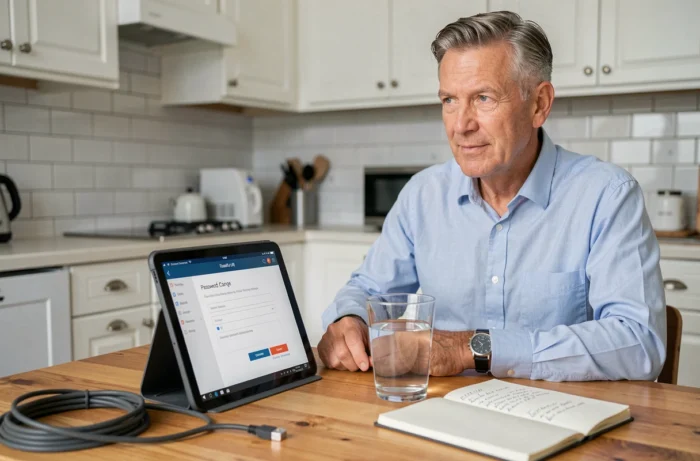
Three Settings to Check Upon First Access to the Interface
The administration interface offers dozens of menus. Not all deserve your immediate attention. Here are the three points that most reduce your exposure.
Change the Administrator Password
The default password is the first element to change. The one printed on the box is the same for many models from the same operator. Choose a combination of at least twelve characters, mix letters, numbers, and symbols, and do not reuse an existing password.
Disable WPS
The WPS (Wi-Fi Protected Setup) button simplifies connecting a new device by pressing a physical button on the box. This mechanism has known vulnerabilities. Disabling WPS reduces a often-overlooked attack vector. You will find it in the advanced Wi-Fi or security section of the interface.
Check Firmware Updates
Most boxes apply their updates automatically, but some require manual validation. In the interface, look for the “System” or “Maintenance” section to confirm that the firmware is up to date. Security patches close vulnerabilities that attackers actively exploit on exposed devices.
Segmenting Your Network to Limit Damage
If a connected device is compromised, it can serve as a jumping-off point to the rest of your home network. Segmentation limits this propagation.
The most accessible method is to create a guest Wi-Fi network from your box’s interface. This secondary network isolates the devices connected to it: they access the internet but not your computers or shared folders. Place your connected devices (cameras, bulbs, thermostats) there to compartmentalize your main network.
Some boxes also allow you to restrict Wi-Fi connection time slots or filter devices by MAC address. These options can be found in the “Access Control” or “Device Management” section.
Accessing your box’s interface takes only a few seconds. Securing what is there requires a bit more attention, but the three settings described above cover the majority of risks that a home network is exposed to. Applying firmware updates and replacing the default administrator password are the two priority actions to take.